 LoopVideoMaker

How to Loop a Video Online
Four steps. The first is the only one you cannot skip. Most loops take under a minute. A Normal loop of a short clip finishes faster than you can find the Download button.
Add your video
Tap the box or drop a file on it. MP4, MOV, WEBM and MKV files up to 2 GB work, iPhone clips included. The file stays on your device.
Choose how it loops
Pick Normal, Reverse or Boomerang and a speed from 0.25x to 5x. Then choose Repeat N times (up to 100) or Make it X long (up to 10 min).
Trim and tidy, if you want
In the Trim tab, drag the Start and End handles to repeat just one part. In the Format tab, untick Keep the sound for a silent loop or pick GIF instead of Video.
Download it
Tap Download Video (Download GIF for a GIF). A Normal loop is ready in seconds at the original quality and saves to your downloads. On a phone, tap See Preview first to watch the loop from the start.
What Each Setting Does
The editor groups its choices into four tabs: Effect, Length, Trim and Format. Each tab shows its current setting under its name. The preview plays every change straight away, so you see the loop before you make it.
Repeat Count or Target Length
Repeat N times is the classic looper. Tap 2x, 3x, 5x, 10x and 20x or type any number up to 100. A 4 second clip repeated 5 times becomes a 20 second video.
Make it X long works backwards from the length you need. Tap 15 s, 30 s, 1 min, 3 min and 10 min or type a number of seconds. The tool works out the loops for you. Most people think in “I need a 30 second clip for this ad slot,” not “I need 7 loops,” so this mode saves the arithmetic. It always uses whole loops, which means the result can run a second or two past your target. That is on purpose. A loop cut short leaves a jump right where the eye is waiting for the restart.
Normal, Reverse and Boomerang
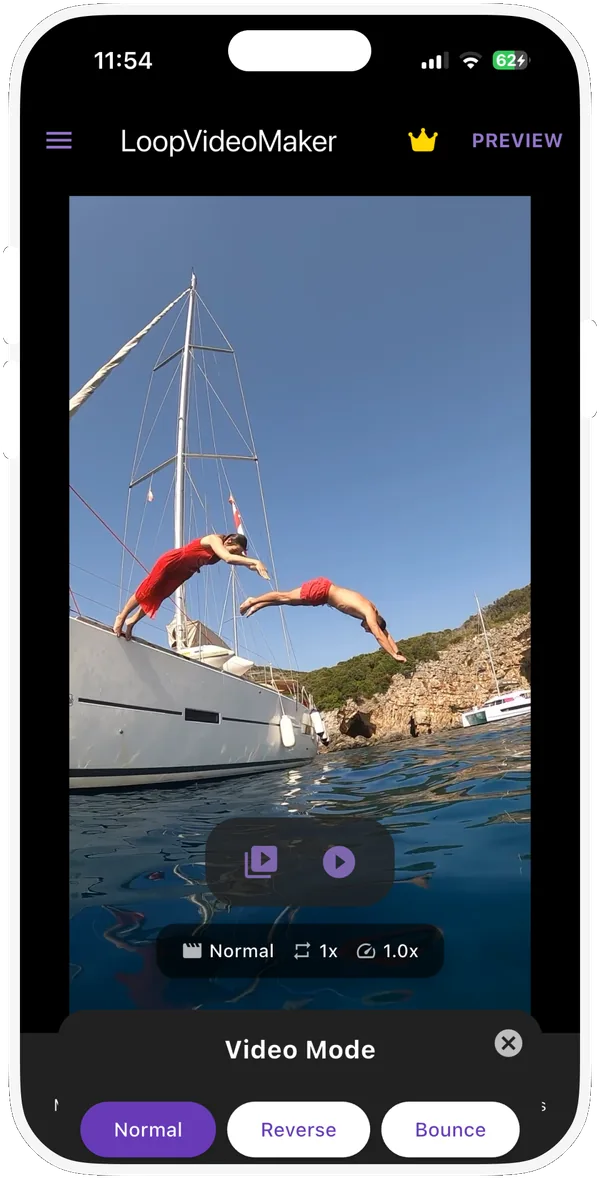
Normal plays the clip as you filmed it, again and again. Reverse plays it backwards: a dive that lifts the swimmer out of the pool, coffee pouring up into the pot. Boomerang plays it forward and then backwards, the trick Instagram made famous with its burst of photos played forward and backward. Ours skips the duplicate frame at each turn, so the bounce does not stutter at either end.
Speed From 0.25x to 5x
Eight speeds: 0.25x, 0.5x, 0.75x, 1x, 2x, 3x, 4x and 5x, the same steps as the LoopVideoMaker app. Anything above 1x drops frames to keep the result smooth. Anything below 1x fills the gaps between frames with blended in-between frames, so slow motion flows instead of stuttering.
Trimming the Part That Repeats
Long clips rarely loop well as a whole. Open the Trim tab and drag the Start handle to the first frame you want, then the End handle to the last. The preview jumps to each frame as you drag, so you see exactly where the loop begins and ends. Trimmed sections can be up to 2 min long (30 seconds for Reverse and Boomerang).
Sound On or Off
Keep the sound is ticked by default. Untick it for a silent loop, which is what most background videos, shop screens and GIF-style clips want anyway. Reversed and bounced clips keep their sound too, played backwards, which ranges from eerie to very funny.
MP4 or GIF
Video gives you an MP4, the format every phone, laptop and social app accepts. GIF gives you an animated GIF for chats, email and forums. Sizes are Small, Medium and Large (320 px, 480 px or 640 px on the longer side) and motion is Standard or Smoother (10 fps or 15 fps). A GIF can be up to 15 seconds long and you choose whether it plays forever, once or a set number of times.
Why a Normal Loop Keeps Every Pixel
Many online loopers decode your video into raw pictures, glue copies together and compress the lot again. Each pass through a compressor throws away a little detail, the way a photocopy of a photocopy goes soft. You also wait for the whole thing to render.
A Normal loop here skips all of that. A video file stores compressed frames, each with its own timestamp. The tool copies those frames exactly as they are and gives every copy a new timestamp, one clip length later than the last. It decodes nothing and compresses nothing. In our tests, three loops of a 1,071,098 byte clip produced exactly three times the video data, frame for frame, in about a third of a second on a desktop browser.
The file also keeps its original format. An iPhone clip in HEVC stays HEVC. A screen recording in VP9 stays VP9. Resolution, frame rate, colour and HDR all come through untouched, because nothing touched them.
What Changes When You Reverse or Retime
Reverse, Boomerang, speed and trim need frames that do not exist yet, so those modes decode the clip once, build the new sequence and compress it as an H.264 MP4 at up to 1920 px on the longer side (1280 px for Reverse and Boomerang) and up to 60 fps. Then the tool loops the finished cycle by copying it, so the slow part only ever runs once. A 10.9 second clip took about 9 seconds to bounce on a desktop in our test.
Frame rate decides how a retimed clip looks. Speeding up is easy: at 2x a 30 fps clip keeps every second frame and still plays at 30 fps. Slowing down is harder. At 0.25x that same clip has only 7.5 real pictures for every second of playback, which on its own would look like a flip book. So the tool fills each gap with a blend of the frames on either side, weighted by how far along the gap it falls. The movement flows instead of stepping, though very fast motion can look a little soft. A phone clip filmed in slo-mo at 240 fps needs no help: slowed to 0.25x it still has 60 real pictures every second. If you plan to slow something down a lot, film it in slo-mo first. HDR clips also come out in standard colour after a re-encode, so they can look a touch flatter than the original.
How Many Loops Do You Need?
Divide the length you want by the length of your clip and round up. Or let Make it X long do it. This table uses the same calculation the editor does:
| Clip length | To reach 15 s | To reach 1 min | To reach 10 min | To reach 1 hour |
|---|---|---|---|---|
| 3 s clip | 5 loops (15 s) | 20 loops (1 min) | 200 loops (10 min) | 1200 loops (1 hour) |
| 5 s clip | 3 loops (15 s) | 12 loops (1 min) | 120 loops (10 min) | 720 loops (1 hour) |
| 8 s clip | 2 loops (16 s) | 8 loops (1.0666666666666667 min) | 75 loops (10 min) | 450 loops (1 hour) |
The 1 hour column needs desktop Chrome or Edge, which can write the loop straight into a file on your computer. Everywhere else the ceiling is 10 min.
File Size Grows With Every Loop
A Normal loop multiplies the file size by the loop count, near enough. Ten loops of a 6 MB clip land at about 60 MB. Muting trims a few percent, since sound is usually a small slice of a video file. On a phone the result has to fit in the tab’s memory, so the tool stops at 400 MB and tells you before you start, not after a long wait. Desktop Chrome and Edge go up to 4 GB when you save straight to a file.
Does the Platform Loop It for You?
Before you bake 20 loops into a Reel, check whether the app already replays it. Most short-video apps do, which makes extra loops in the file pointless there. The table shows what each platform does with a short clip and how long a video it accepts.
Last checked: October 2026. Platforms change these limits often.
| Platform | Replays by itself? | Length limit |
|---|---|---|
| Instagram Reels | Yes, until the viewer swipes | Record up to 20 min in the app; Reels over 3 min are not recommended to new audiences |
| TikTok | Yes | 10 min recorded in the app, 60 min uploaded (varies by account) |
| YouTube Shorts | Yes | 3 min for Shorts uploaded since 15 October 2024 |
| X (Twitter) | Yes, if 60 s or shorter | 2 min 20 s without Premium |
| Facebook Reels | Yes | No length limit since June 2025 |
| WhatsApp Status | No, it moves to the next status | 90 s on current help pages (older pages say 30 s) |
Sources: Instagram’s Reels page, YouTube Help on Shorts and the X Help Center, plus TikTok, Meta and WhatsApp help pages.
When Baking Loops Into the File Helps
Anywhere the player stops at the end. A WhatsApp Status that plays a 4 second clip once is gone before anyone reads it, so looping it 5 times gives people 20 seconds to notice. Presentation software, shop screens, email attachments and many ad slots play a file once and freeze on the last frame. Video backgrounds for calls and websites need a long, steady clip rather than a short one that visibly restarts. Some players also pause for a split second when they jump back to the start, which a baked-in loop avoids.
When It Is Wasted Effort
On Reels, TikTok, Shorts and short X videos, the app already loops. A 5 second clip baked into a 60 second file just makes viewers wait for nothing new. A longer upload with the same content will not fool anyone either. Post the short version and let the player repeat it.
Making a Loop Look Seamless
The tool joins the end of your clip to the start with no gap. Whether the join looks invisible depends on what is in the frames. A few habits make the difference between a loop people stare at and one that hiccups every five seconds.
Match the First and Last Frame
Film with the phone propped against something. End the shot where it began: the same framing, the subject back in the same spot. A candle flame, rain on a window or a ceiling fan loops almost perfectly with no effort, because the scene at second 6 looks like the scene at second 0.
Cut on the Motion Cycle
Repeating motion has a natural cycle: one swing of a pendulum, one wave breaking, one turn of a record. Trim exactly one or two full cycles with the Start and End handles. Tap a handle and use the arrow keys to nudge it a tenth of a second at a time. Two frames too many is all it takes to see the jump.
Why a Boomerang Never Shows a Seam
Boomerang plays the clip forward and then backwards, so the last frame flows straight into the frame before it. There is no cut to hide. That is why it rescues clips that refuse to loop any other way: a hand-held shot, a jump, a hair flip. It works best on short bursts of 1 to 3 seconds of movement.
Stopping the Click at the Loop Point
Sound is harder to fool than eyes. If the waveform at the end does not meet the waveform at the start, the speaker jumps and you hear a click every time the clip repeats. Trim the clip so it starts and ends on a quiet moment, keep music out of the source clip or untick Keep the sound and add a track later. Loops of rain, crowds and engine noise hide the seam far better than speech or music.
GIF or MP4: Which Loop to Export
GIF is the only common format that loops by itself, wherever it appears. MP4 is smaller, sharper and has sound. The right pick depends on where the loop is going.
| GIF | MP4 | |
|---|---|---|
| Loops by itself | Yes, the file stores a loop count | No, the player decides |
| Sound | None | Yes |
| Colours | 256 per frame | Millions |
| Size for the same clip | Several times bigger | Small |
| Best for | Chats, email, forums, Giphy | Social apps, websites, presentations |
GIF dates back to 1987. It shows in the file size. In our test, a 5.4 second GIF at 480 px came out at 3.8 MB. The 10.9 second MP4 it came from weighs 1.1 MB. Keep GIFs short, small and at 10 fps unless the motion really needs 15.
GIF Loop Count Explained
An animated GIF carries a small instruction that says how many times to repeat. A value of 0 means forever. Any number from 1 to 65,535 sets a count, according to the GIF format’s history on Wikipedia. Choose Forever for reactions and memes. Choose Once or a small number when the last frame carries the message, like a logo reveal in an email signature, so the animation finishes and rests there. Browsers have not always agreed on whether the count includes the first play, so check a counted GIF in the app or email client where people will see it.
GIFs store frame timing in hundredths of a second. Browsers treat a delay of 0.01 seconds or less as 0.1 seconds. That is why some “fast” GIFs crawl. The tool stays well clear of that, at 10 fps or 15 fps.
Keeping a GIF Under Upload Limits
Discord raised its free upload limit to 20 MB in August 2026 and Giphy accepts uploads up to 100 MB. Our GIFs top out at 15 seconds, so length is rarely the problem. Size is. If a GIF comes out too big, pick Small (320 px) or Standard motion (10 fps). Trimming helps too. Halving the size on each side cuts the pixel count to a quarter.
Looping iPhone and Android Videos
The tool was built at phone width first. Its drop zone opens your camera roll. Phone videos also bring two quirks of their own.
iPhone HEVC and MOV Files
iPhones offer two camera formats under Settings, Camera, Formats. High Efficiency records HEVC (also called H.265) and Most Compatible records H.264, as Apple’s guide to camera formats explains. Both loop here. A Normal loop keeps HEVC as HEVC and saves it as an MP4 that plays on iPhones, iPads and Macs. Some Windows PCs need the HEVC Video Extensions from the Microsoft Store to play HEVC, so if a friend on Windows sees a black screen, send the Most Compatible version or loop it with Reverse or a speed change, which saves H.264.
Portrait clips stay portrait. Phones mark them with a rotation tag instead of turning the pixels. The tool carries that tag across. When it re-encodes, it turns the picture upright instead.
Live Photo Loop and Bounce
Every Live Photo is a tiny video in disguise. In the Photos app, open one, tap the Live button near the top and choose Loop or Bounce, as Apple’s Live Photos guide shows. Bounce is Apple’s boomerang. It plays nicely inside Photos, but it stays a photo. To post it as a video with music or text over it, the LoopVideoMaker app turns the clip into a loop you can share anywhere.
Saving the Loop to Your Camera Roll
Download Video saves the loop the same way on every device. On iPhone, Safari puts it in the Downloads folder of the Files app. Open it there, tap Share and choose Save Video to move it into Photos. On Android and on a computer it lands in your Downloads folder like any other file.
Looping Playback Without a New File
Sometimes you do not need a new file at all. You just want the player to repeat. Every major player can, if you know where the switch lives:
| Where | How to loop playback |
|---|---|
| YouTube on a computer | Right-click the video, choose Loop |
| YouTube app | Settings, Additional settings, Loop video |
| QuickTime Player on Mac | View, Loop |
| Photos on iPhone | Replays on its own in recent iOS, with a Loop Videos switch in the Photos settings |
| VLC | The loop button cycles between playlist, one video and off |
| PowerPoint | Playback tab, Loop until Stopped |
| Google Slides | No loop option. Loop the file first, then insert it |
The YouTube steps come from YouTube Help. Google Slides is the classic trap: its video options are play on click, play automatically and play manually, with no repeat. It catches out anyone running a slideshow on a kiosk screen. Loop the clip to 10 minutes here, upload that version to Google Drive and insert it instead.
Loops Worth Making
Beyond memes and Reels, a looped clip earns its keep in a few less obvious places.
Spotify Canvas
Artists can put a short looping visual behind a track on Spotify. Spotify asks for 3 to 8 seconds, vertical 9:16, between 720 and 1080 px tall. Trim your best 6 seconds here, try Boomerang for a rebound effect and keep the sound off, since the song plays over it anyway.
Video Backgrounds for Calls
Zoom accepts MP4 or MOV video backgrounds between 480x360 and 1920x1080 pixels. A 6 second clip of slow clouds either restarts or stops every 6 seconds, depending on the app. Looped to 10 minutes, it keeps drifting for most of a meeting.
Product Clips and Shop Screens
Picture a bakery with a TV by the till, playing a USB stick. A 10 second clip of icing going onto a cake plays once and leaves the screen frozen on the last frame. Looped 60 times, it is 10 minutes of movement before anyone has to touch the remote. Small online shops use the same trick on product pages, with a silent turning product shot in place of a still photo.
Cinemagraphs
A cinemagraph is a still photo where one small movement repeats: steam from a cup, a curtain in a breeze. The term comes from photographers Kevin Burg and Jamie Beck, who started making them in early 2011. True cinemagraphs freeze part of the frame by hand, but a tripod shot of a single moving detail, trimmed tight and looped with Boomerang, gets you most of the way there in a minute.
Your Video Stays on Your Device
Everything is processed here itself, nothing is uploaded to our servers. The tool reads the file from your phone or computer, loops it inside this browser tab and hands it back as a download. Close the tab and it is gone. A slow connection matters little once the page has loaded, since no large file ever sits in an upload queue.
We do count usage. When an export finishes, the page records that it happened and which settings you picked, such as the mode and the loop count, so we know which features people use. It never records the video, its name or anything in it.
Limits and What Your Phone Can Handle
| Limit | Value |
|---|---|
| Largest input file | 2 GB |
| Repeat N times | Up to 100 loops |
| Make it X long | Up to 10 min (1 hour on desktop Chrome and Edge) |
| Largest result | 400 MB (4 GB on desktop Chrome and Edge) |
| Section for speed and trim | Up to 2 min |
| Section for Reverse and Boomerang | Up to 30 seconds |
| GIF | Up to 15 s at 320 px, 480 px or 640 px |
| Videos your browser needs to get ready first | Up to 2 min |
Normal loops work in every current browser, Firefox on Android included. Reverse, Boomerang, speed, trim and GIF need a browser that can create video: current Chrome, Edge, Safari and desktop Firefox. Older Safari versions and Firefox on Windows can make those videos but not their sound. The tool tells you when that happens.
When Something Goes Wrong
The video will not open. Make sure it is a video file, not a Live Photo still or a HEIC image. MP4, MOV, WEBM and MKV all work. Files from old cameras or editing apps with unusual formats may need exporting again as MP4.
Loading takes a while. Some videos are in a format your browser cannot show straight away, so the tool gets them ready on your device first. Nothing is uploaded to our servers. In our test a 10.7 second clip took about 30 seconds in Firefox on a desktop computer. Phones take longer.
Reverse and Boomerang are greyed out. Either your browser cannot create video, which is the usual story in Firefox on Android. Or this video is not ready yet in your browser. The Unlock them button sorts that out. Normal loops still work. Chrome or Samsung Internet on the same phone can do the rest.
The result has no sound. Either you unticked Keep the sound, you chose GIF or your browser cannot save sound in a re-encoded video. A Normal loop always keeps the original sound.
The export stopped on my phone. The tab ran out of memory. Pick fewer loops, a shorter length or trim the clip, then try again. The size estimate under the settings tells you how big the file will be before you start.
A friend sees a black screen. They are probably on Windows without HEVC support. Send a version made with a speed change or Reverse, which saves H.264. Or switch the iPhone camera to Most Compatible before filming the next one.
Where the LoopVideoMaker App Goes Further
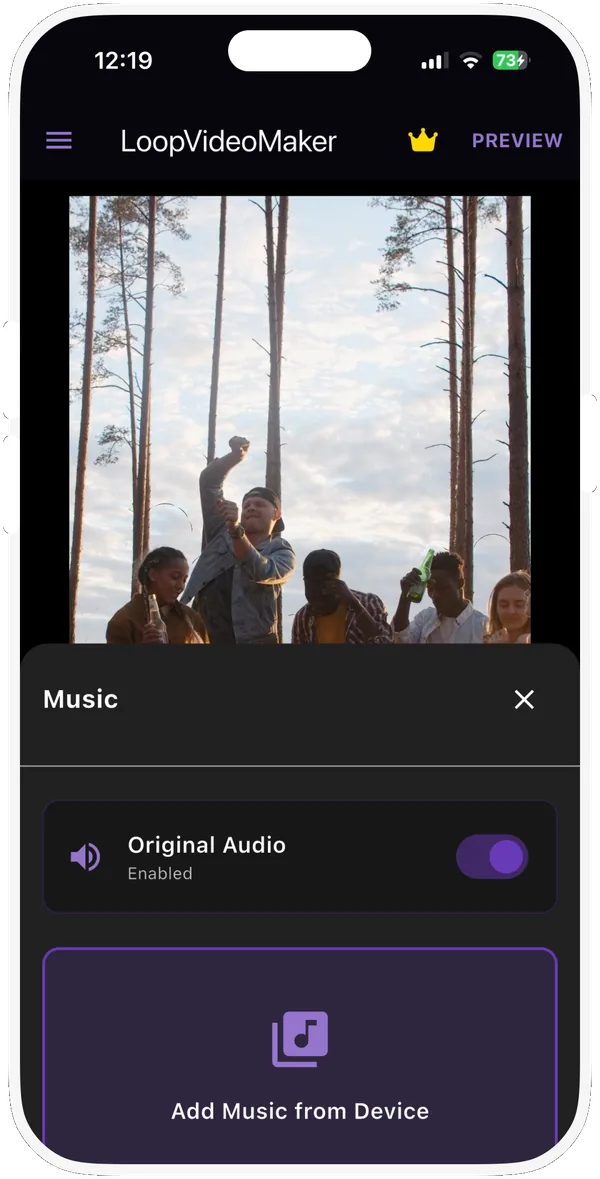
This page does one job well. The LoopVideoMaker app for Android and iPhone does the whole edit on your phone: Normal, Reverse and Bounce modes, speeds from 0.25x to 5x and trimming and reframing to 1:1, 9:16 or 16:9. It also adds what a browser looper cannot: music, text, emojis, drawings and filters, then saves the loop as a GIF or a 1080p video with no watermark.
The app is free to download. An optional subscription unlocks extras such as HD saving, more filters and text styles. Use this page when you are at a computer or just need a quick loop. Use the app when the loop is the start of a post rather than the end of one.